
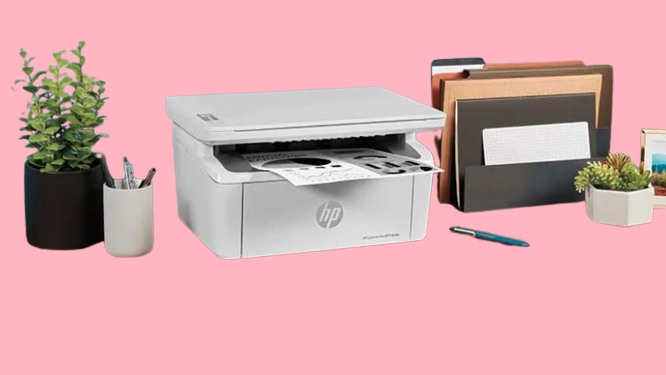
Techmom how to install a HP printer fast
Whether your printing something with high priority or printing something for crafting. It’s very annoying if you can’t get the printer working. I have an easy lifehack for stayathomemoms or techmoms to quickly get your printer working. If your a windows 11 user I advise you to read the paragraph that is specially for windows 11 users. If you use an Apple, I advise you to read the post about Apple Mac OS. For convenience, I opted for an HP printer, but the manual does not differ much from a Canon or other printer.
I use Windows 11
If you have a printer that connects by a wire plug it in and it’ll connect automatically. Your PC starts to install the right drivers and you can use the printer as soon this is installed. To connect and install a wireless printer, follow the steps that are shown below:
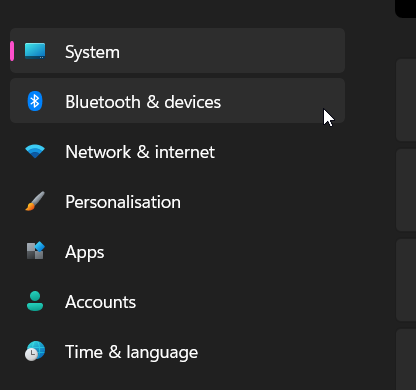
Step one is to click on the Start button go to Settings > Bluetooth & Devices > Printers & Scanners

Click on the button
Click on the button

Click on the button
Click on Add a printer or a scanner and click on the button “Add device”.

If you purchase a new printer and want to remove the installed printer you can click on the button “Remove”.
Still don’t see your printer then try to fix the problem following the steps “Fix printer connection and prinitng problems in Windows“.
I use Apple Mac OS
If you’re trying to install a Wi-Fi printer to your Mac you might need a USB cable to install the printer. After connecting your laptop with the printer, install the Mac software and use the setup assistant to connect your printer to Wi-Fi. After the setting up phase is done, you can unplug the cable from your printer and the Mac.
To add the printer to your printer follow the steps below:
Go to the Apple menu > System Preferences > Printers & Scanners
Then click on the + button and a listing appear from printers on your local network. This may take some minutes before your printer appears. Select your printer and then click on the Add button. In case you see a message pop up to install new software then follow up this step.
Read about storing passwords here
Read about usb sticks here


You May Also Like

De 6 leukste Sinterklaasboeken van 2022! – The 6 best Saint Nicholas books 2022!

Secure Coding